 Receiving Backordered Items
| Document Version | v.3 |
|---|---|
| Document Last Updated | 10/8/2025 |
| Software Version Documented | v.10.2 |
Task/Problem Overview
This knowledge base article will cover how to handle the scenario that you are receiving material that is for backorders.
If you receive items on a receiver that are allocated to a sales order (they are back-ordered items), we have a special process to warn you that you will not need to put those items away. The rest of the basic receiving process remains the same. See below for details.
Open Inventory ->Warehouse Manager -> Receiving -> Receivers

Or Open Inventory ->Warehouse Manager and select Receivers in Receiving section

- Search for the open receiver by the PO number or a myriad of other ways to filter for finding what you are looking for, PO Number, Vendor Name, Job/Release, etc. on the packaging list that came with the shipment you are receiving.

- Double click the PO to open the receiver. The screen will look like this.

- Since the manufacturer only shipped some of the items, manually input the amount received in the “Qty Received” column for each line item.

- Post Receiver to “Received”

- Click OK for the Hold For Backorders prompt. It will show you
Part Numbers, Serial Numbers (if applicable), Quantity Received, Order# linked (if applicable), Quantity Order, Install Location (if applicable), Install Location Label Quantity (that can be changed) and whether you want to print those Install Locations.
- Please refer to the document and/or video on Install Location Label Printing from Receiver - KB article

-
At this point, the items will be moved in the software into your warehouse into the default receiving bin location or Held for Backorders Bin until you put the items away.
-
A Put Away Report will print at this time showing you the quantity, item #, and putaway location for all the items that you have received. The items held for backorder will appear on the putaway report but it will indicate that they are to be held for backorder.
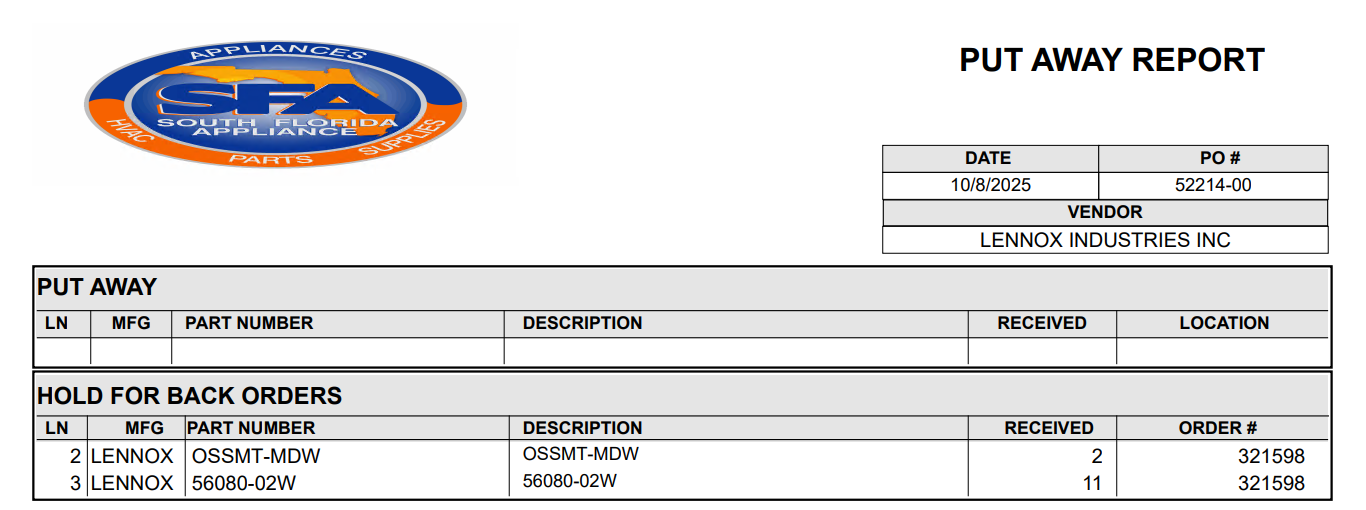

-
If items are put away, manually enter the quantity of items you physically put away in the “Qty Put Away” column.
-
And if it is a different location then their Default Location, you can click on the “...” next to the PutAway Location to add/change the location you are putting them away to.

Post receiver to “PutAway”

That Receiver is now complete and in Payable status

Any items not received, will be created on another Receiver automatically.

Items Received and/or Putaway can be seen now in the Receivers bench under the Payable
